
iOS Dropbox Support
This is an ADVANCED TIP for Bunny Trails' users that also use Dropbox (cloud file sharing service). We are not affiliated with Dropbox and will not offer Dropbox support. However, if you are familiar with syncing files in Dropbox, then the following steps should be fairly simple for you to follow.
This tip will allow the user to transfer their BTS file back and forth between their computer and iOS device without having to physically connect the device to the computer and also allowing you to bypass iTunes.
This tip will allow the user to transfer their BTS file back and forth between their computer and iOS device without having to physically connect the device to the computer and also allowing you to bypass iTunes.
Move your Bunny Trails file from your computer to your iOS device.
Step 1 - Make sure you have Dropbox installed on your iOS device.
Step 2 - Create a BTS file for your iOS device
- Open Bunny Trails on your computer.
- Click the Preferences Button on the Home Screen.
- Click the "Send To iOS" button.
- After Bunny Trails creates a file on your desktop, then copy or drag that file to a folder in your Dropbox.
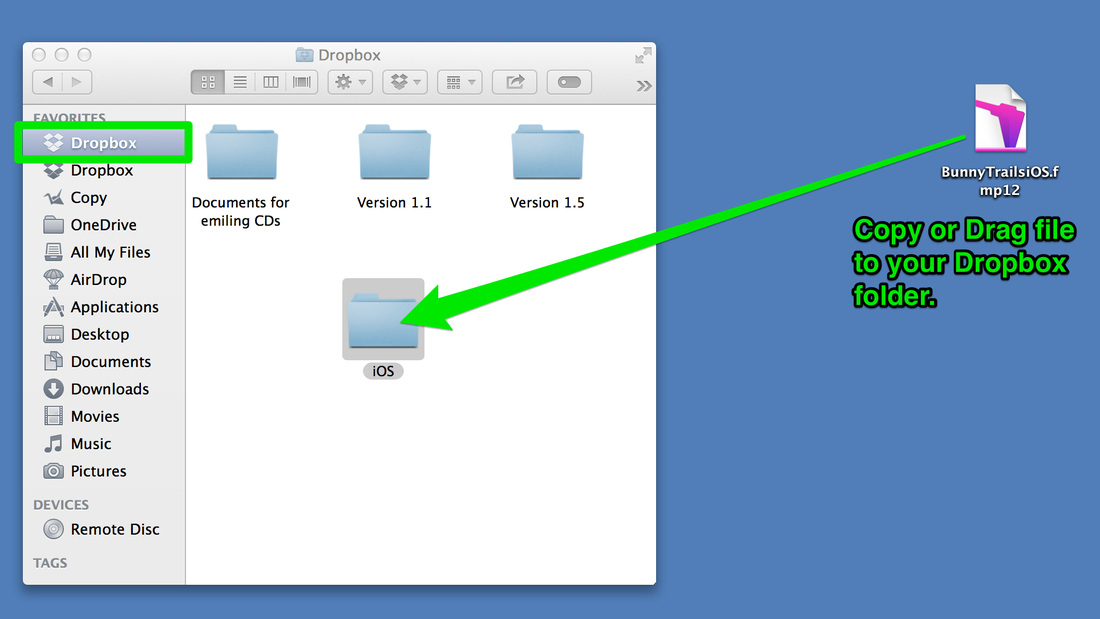
5. Allow some time for the file to upload to the cloud. Once it is uploaded, then follow the steps to load it to your iOS device.
Load Bunny Trails on your iOS device.
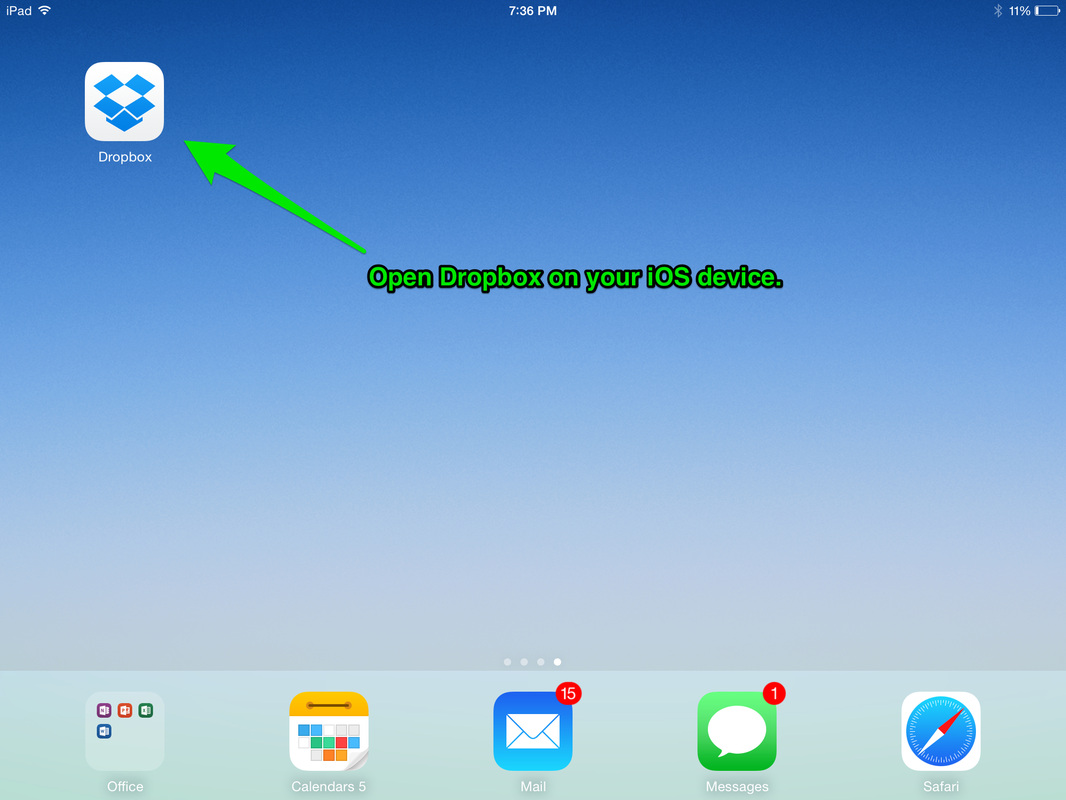
1) Open Dropbox on your iOS device.
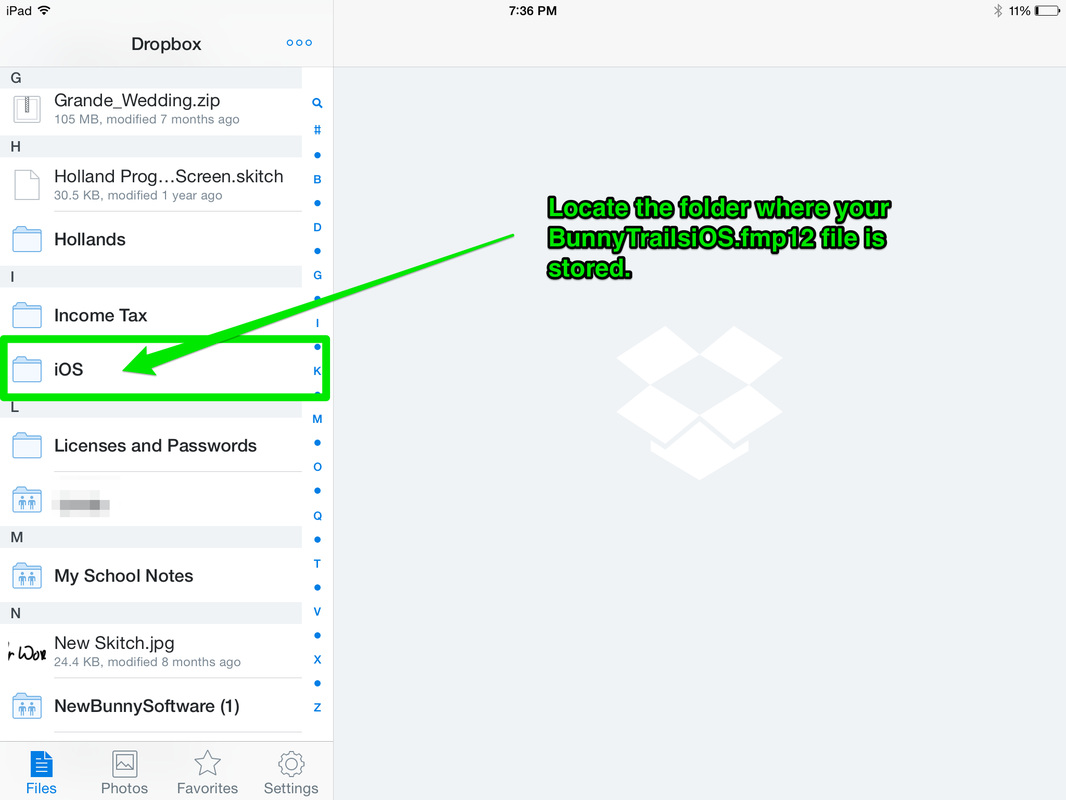
2) Locate the folder where your BunnyTrailsiOS.fmp12 file is stored.
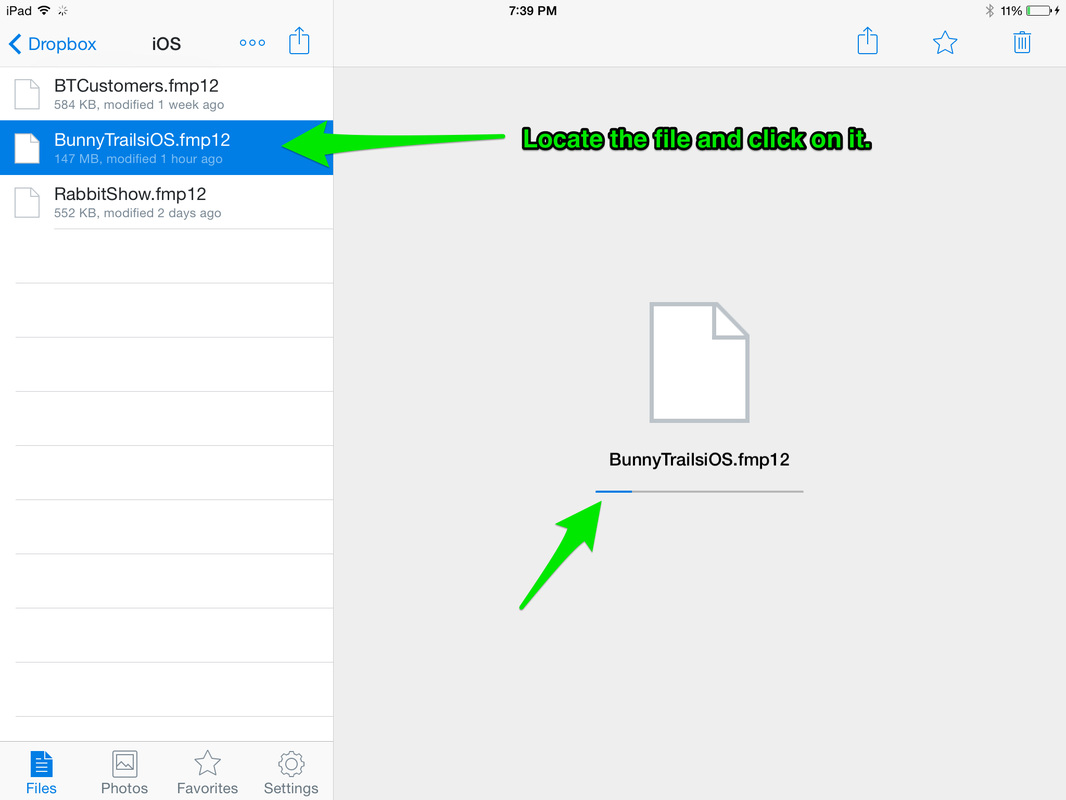
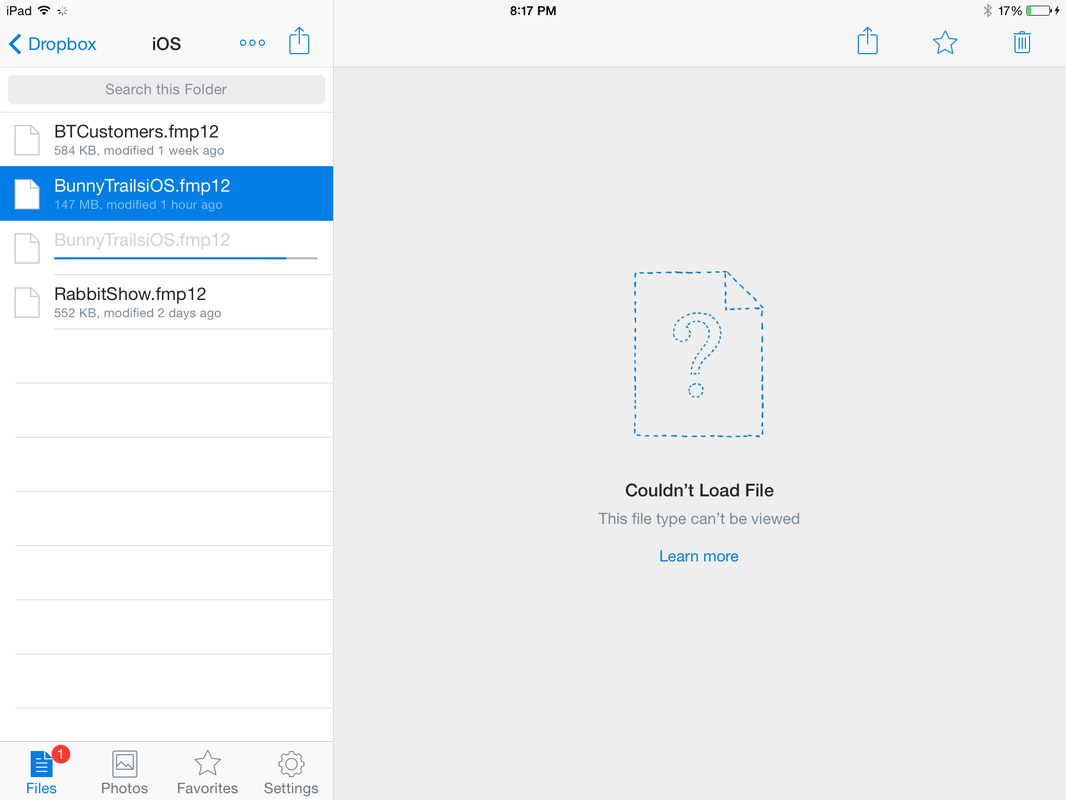
3) Locate the BunnyTrailsiOS.fmp12 file and click on it. This will initiate the download process. You will see a status bar charting the download progress.
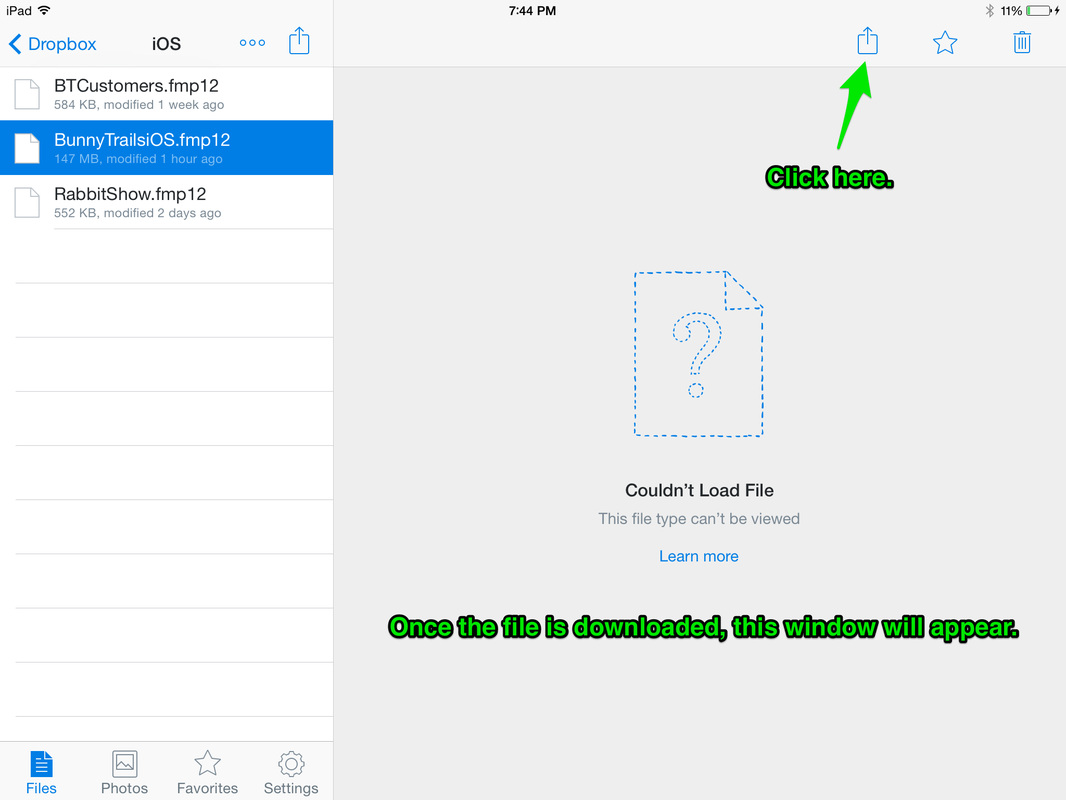
4) Once the file is downloaded, you will see this window. Click the export icon.
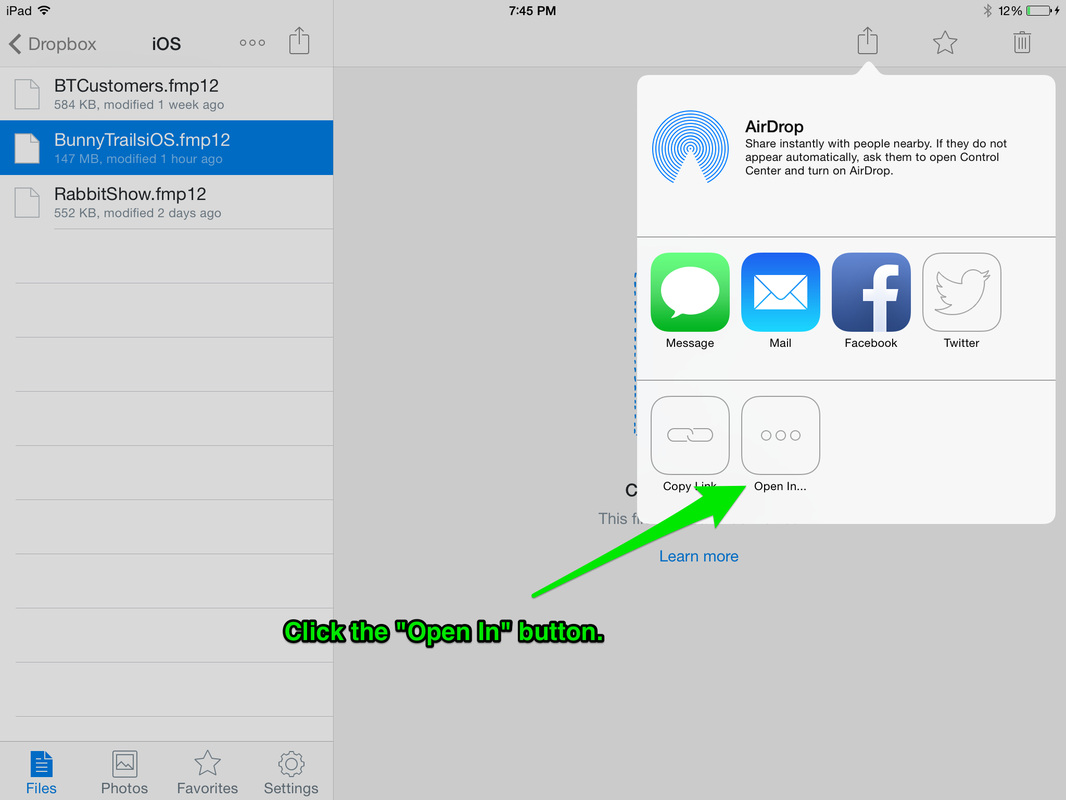
5) Almost there! Now click the "Open In..." button.
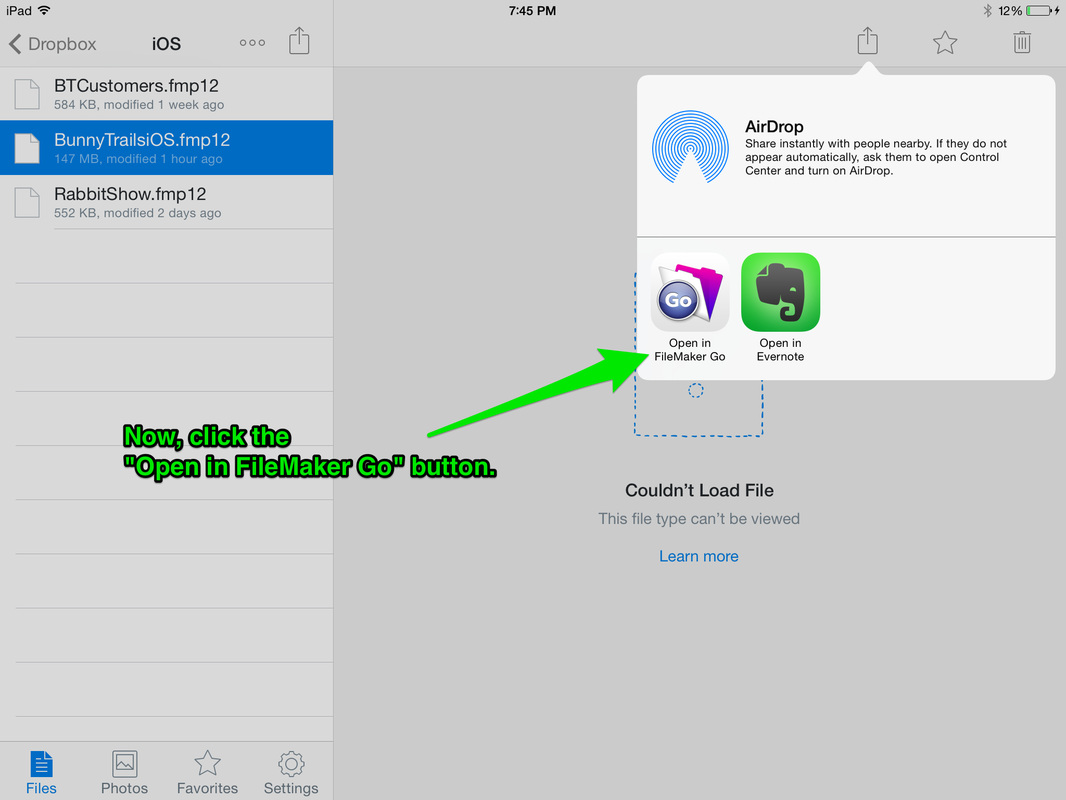
6) Last step! Click the "Open in FileMaker Go" button.
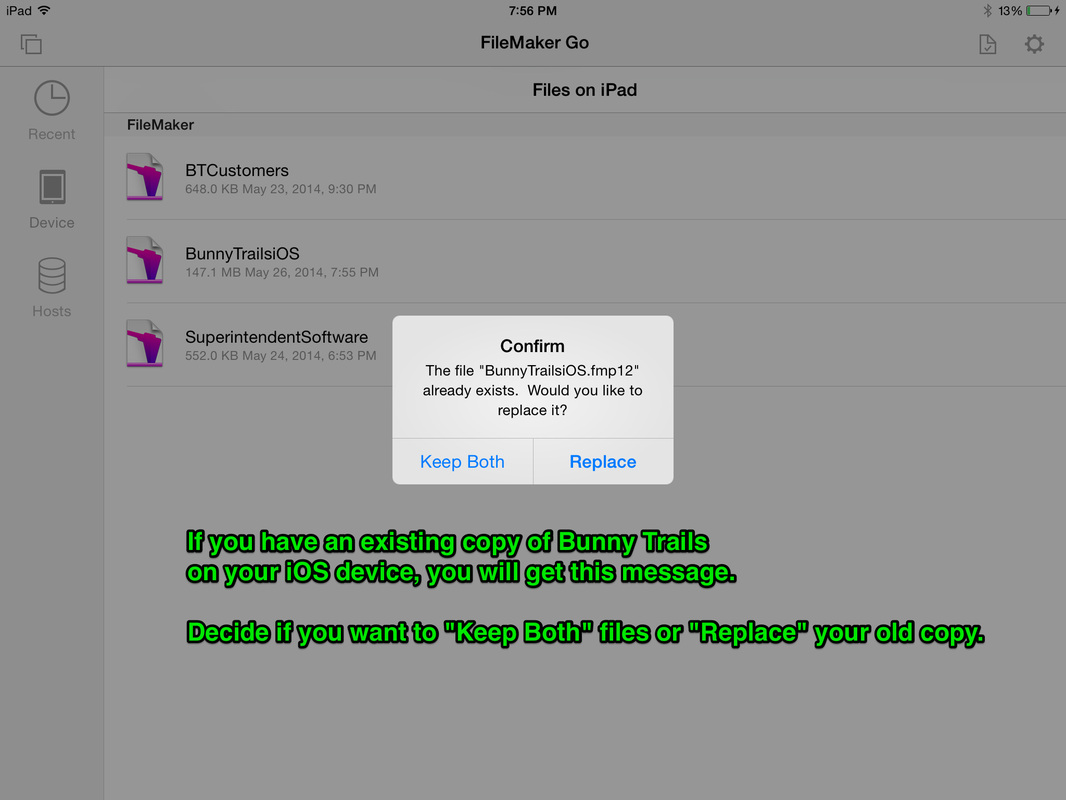
7) If you have an old copy of Bunny Trails on your iOS device, you will get a message asking you if you want to keep both files or replace your old one with this new one.
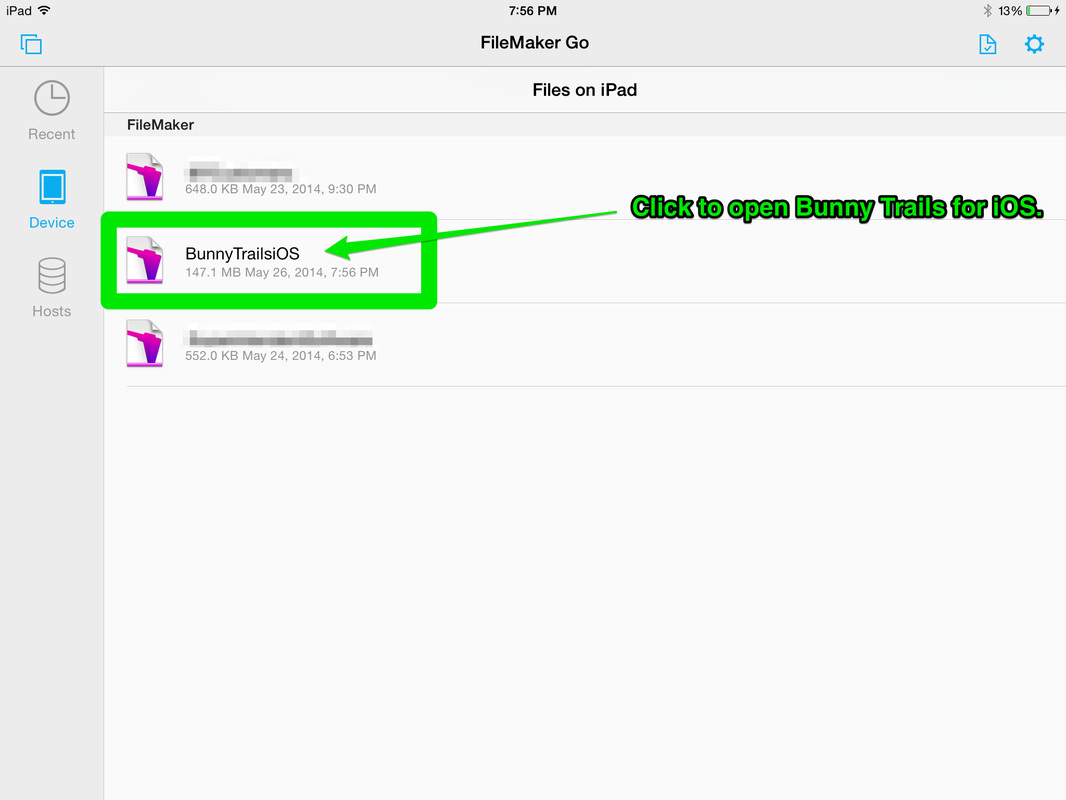
8) FileMaker Go will automatically open. Click the BunnyTrailsiOS file to open Bunny Trails.
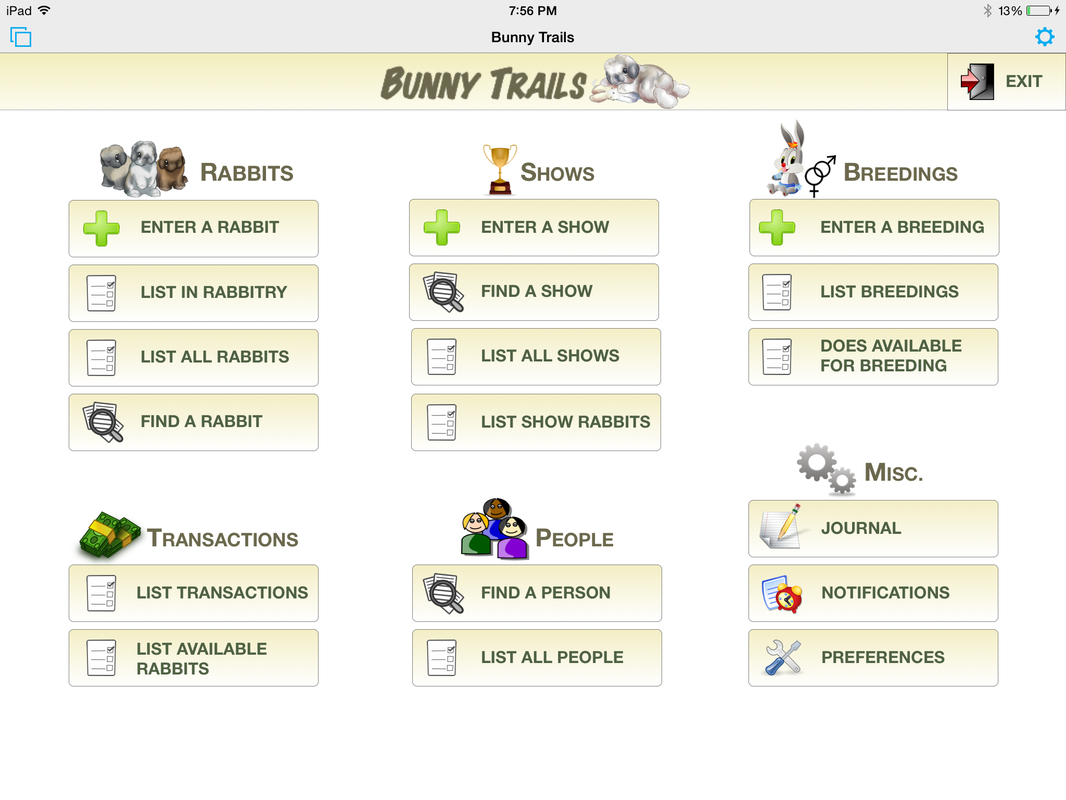
Done! Bunny Trails has been successfully transferred!
Move your Bunny Trails file back to your computer.
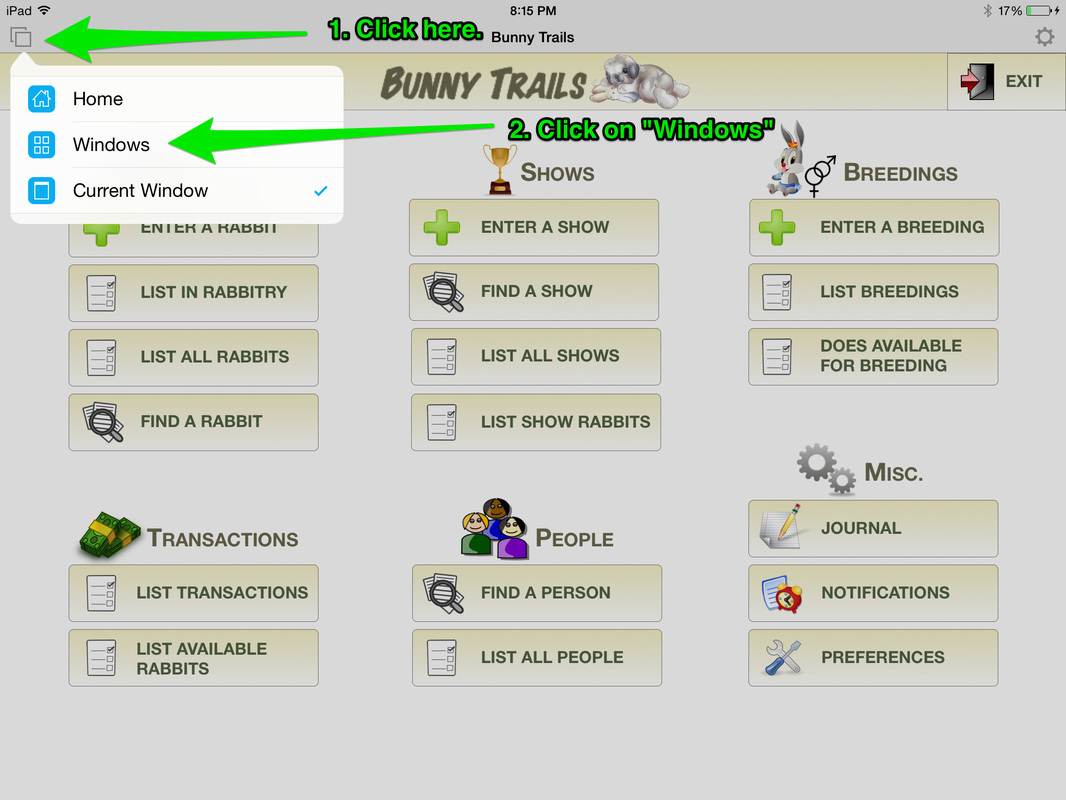
1) From the iOS Bunny Trails Home Screen, click on the Options box in the upper lefthand corner. Then select the "Windows" view.
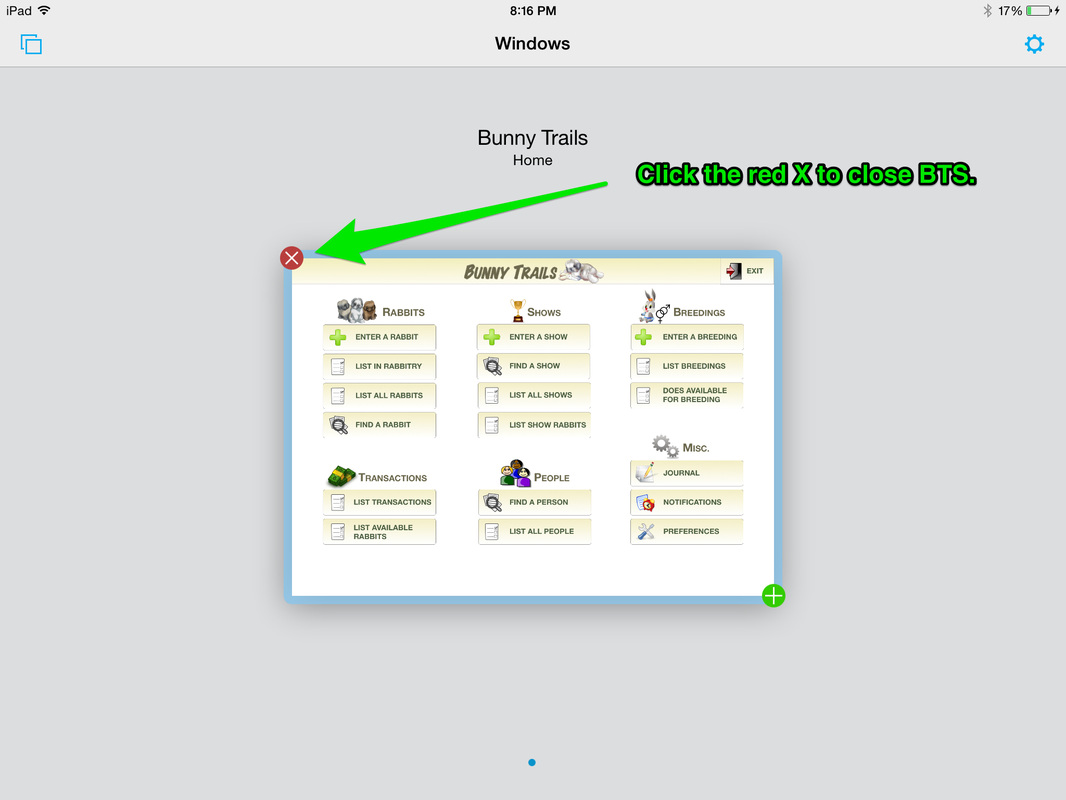
2) Close your copy of Bunny Trails by clicking on the red circle with the white X.
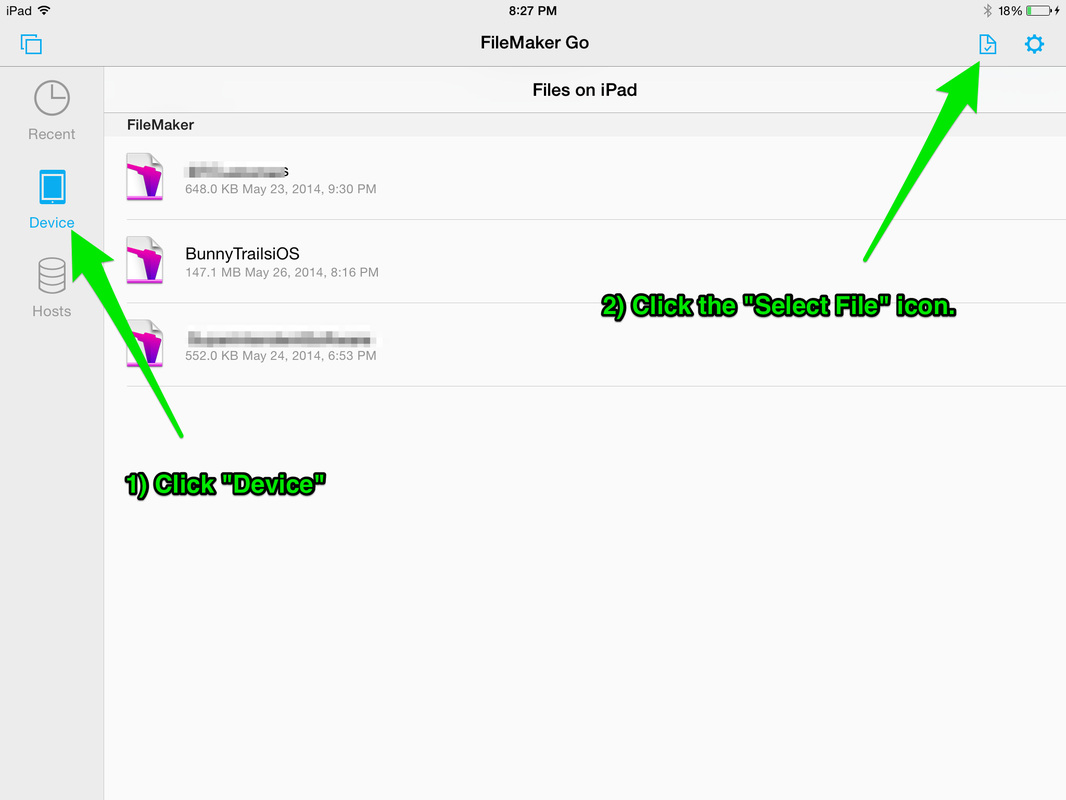
3) Click on the "Device" option to the left. Then, click on the "Select File" icon.
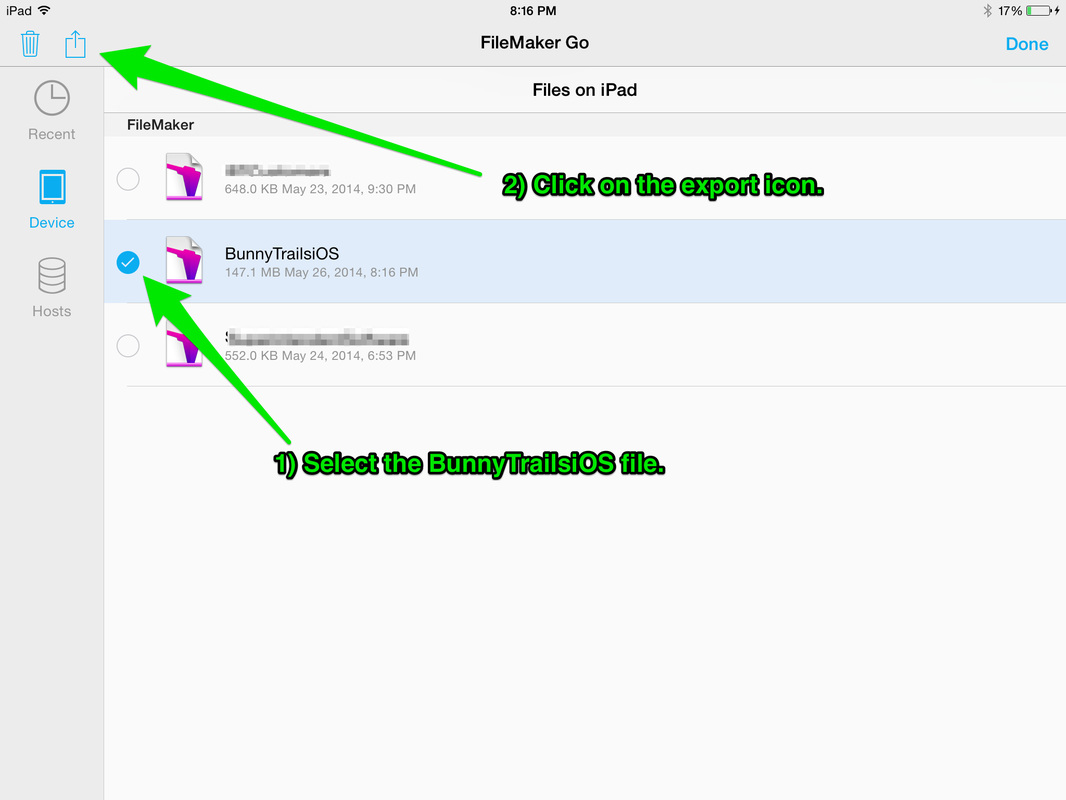
4) Place a checkmark next to the BunnyTrailsiOS file. Then, click the export icon.
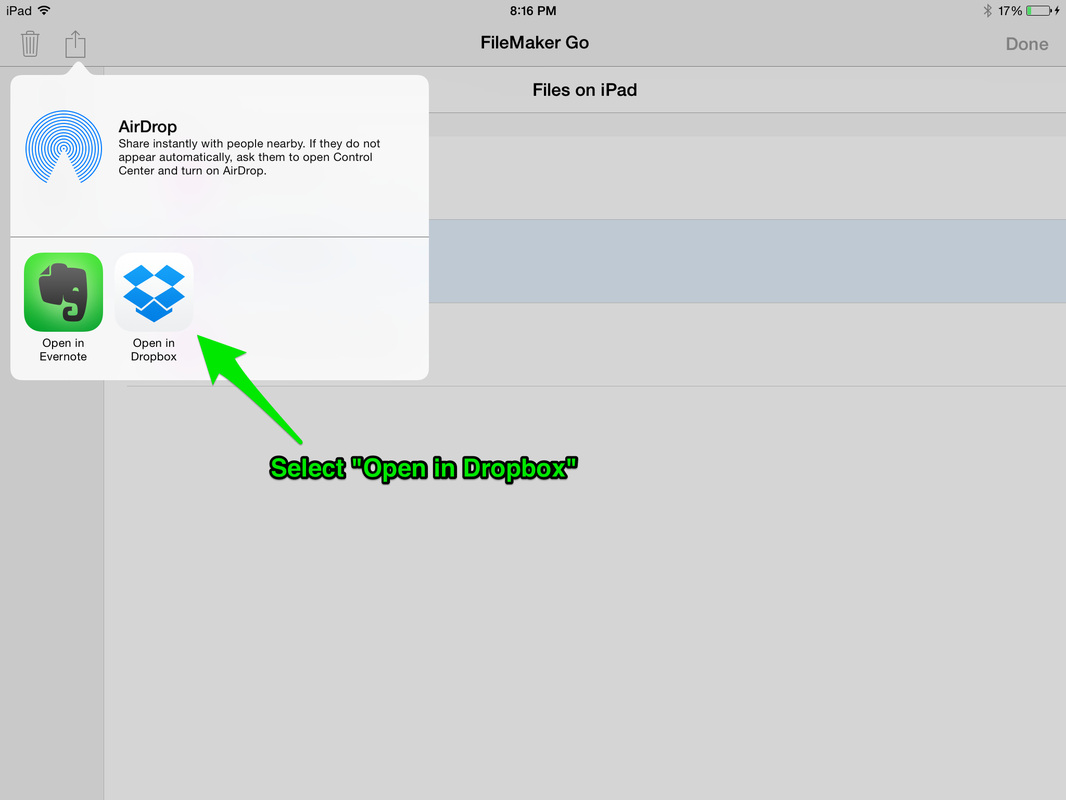
5) A box will open asking you where you want to export your file to. Select "Open in Dropbox."
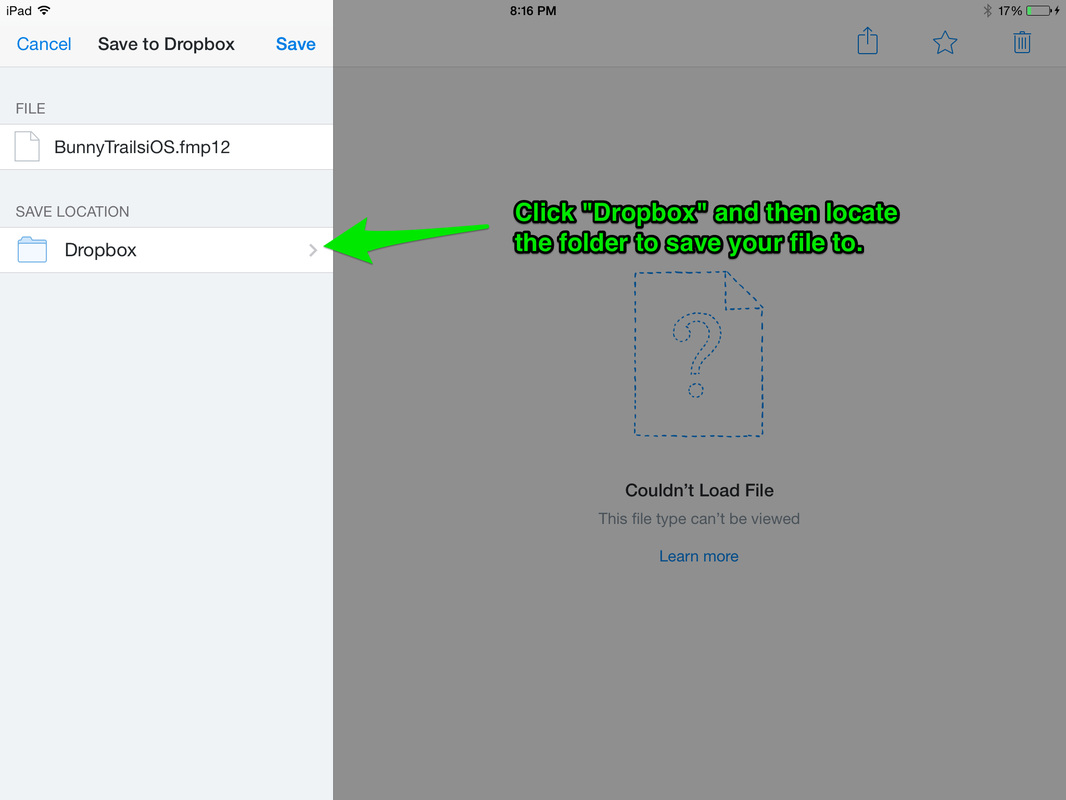
6) Next you will have to set a location to save your file to. Click on the "Dropbox" folder to the left.
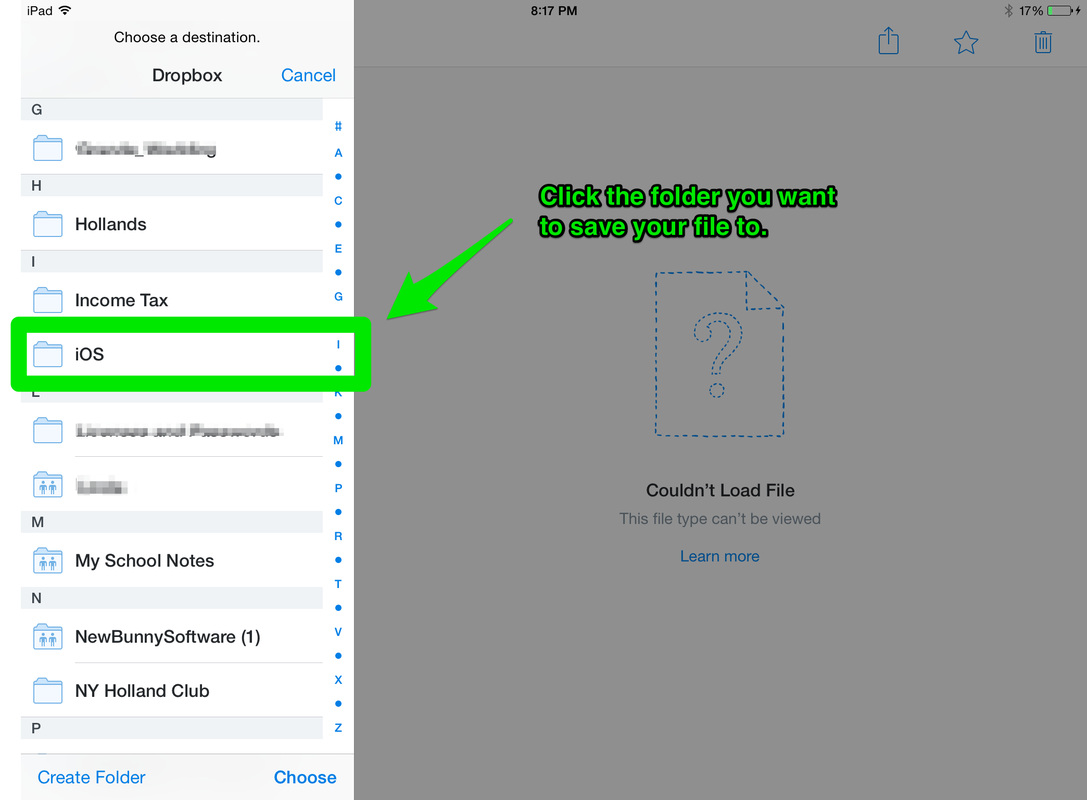
7) You can scroll through your folders to find the one where you wish to save your file to. I created an iOS folder to store my file.
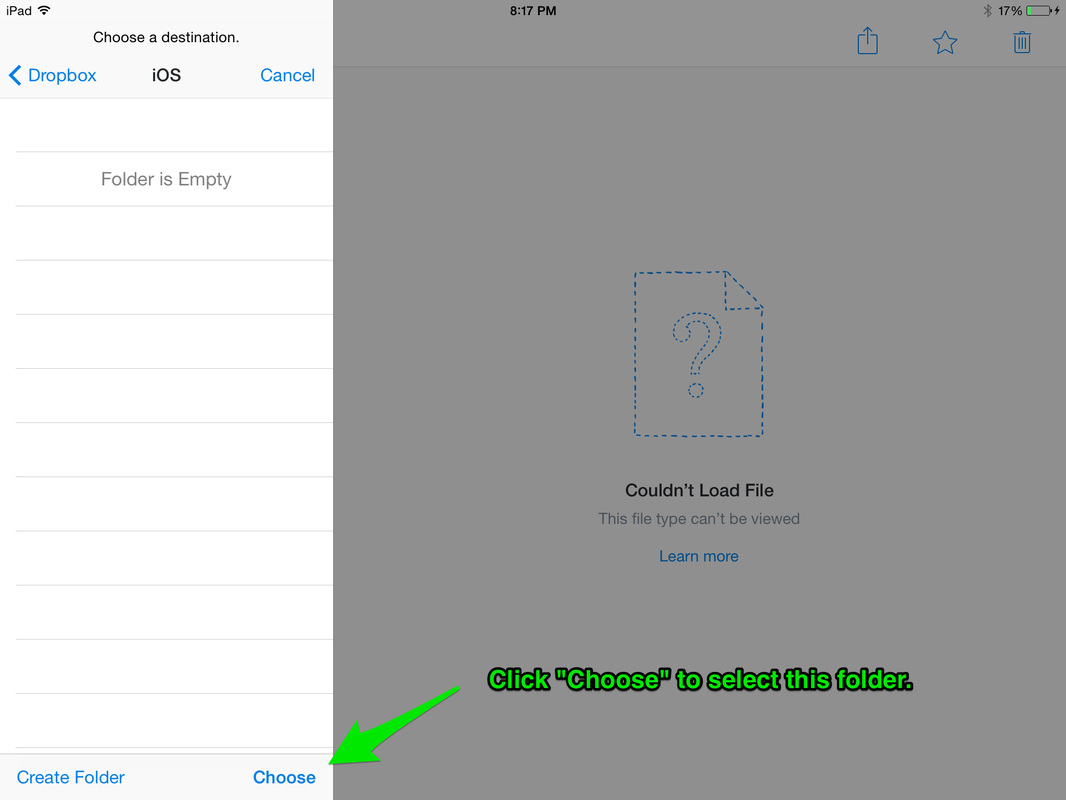
8) After you select your folder, click the "Choose" option.
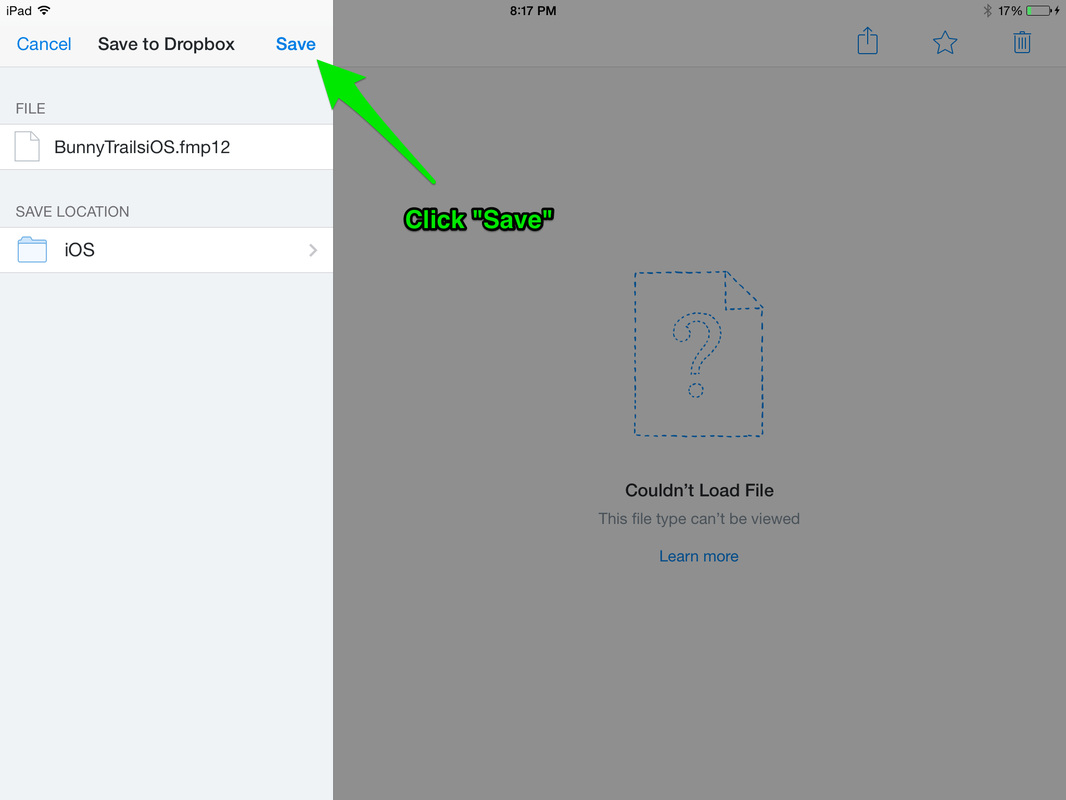
9) Once your folder is selected, then click the "Save" option.
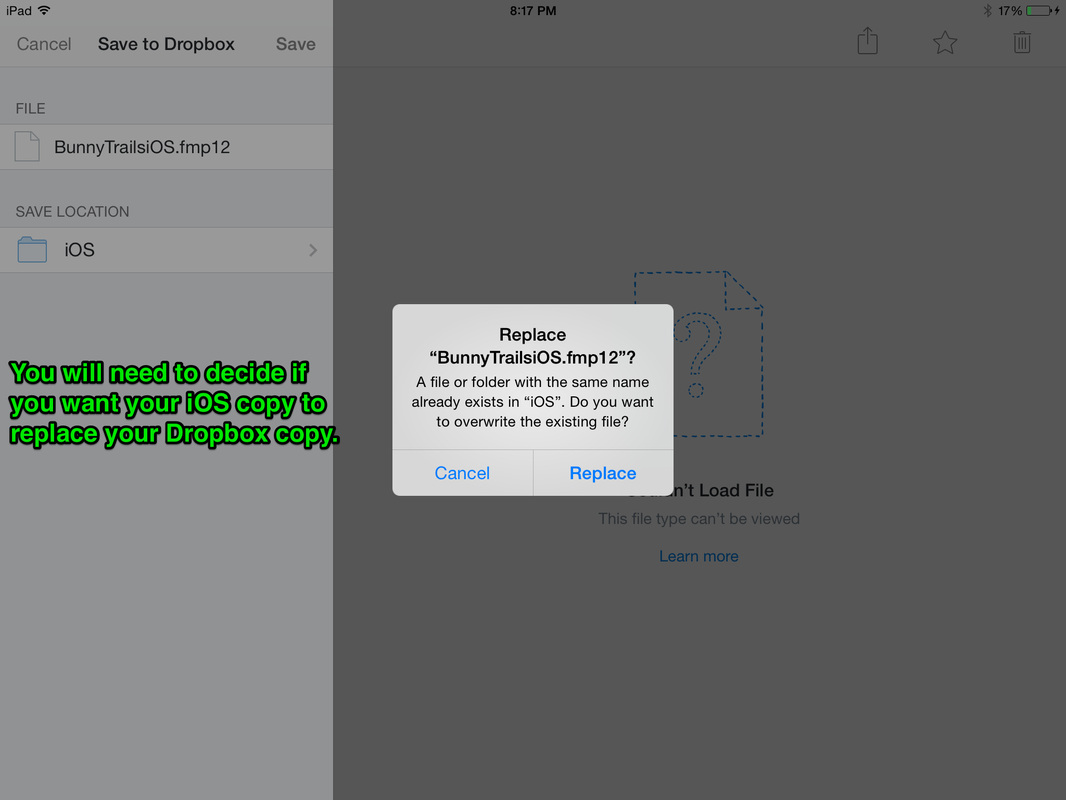
10) A pop up window may appear asking if you want to replace your old copy of Bunny Trails.
11) You file will save to Dropbox and then become available in your Dropbox folder on your computer. You all done!